How it works
A phone touches
a piece of acrylic.
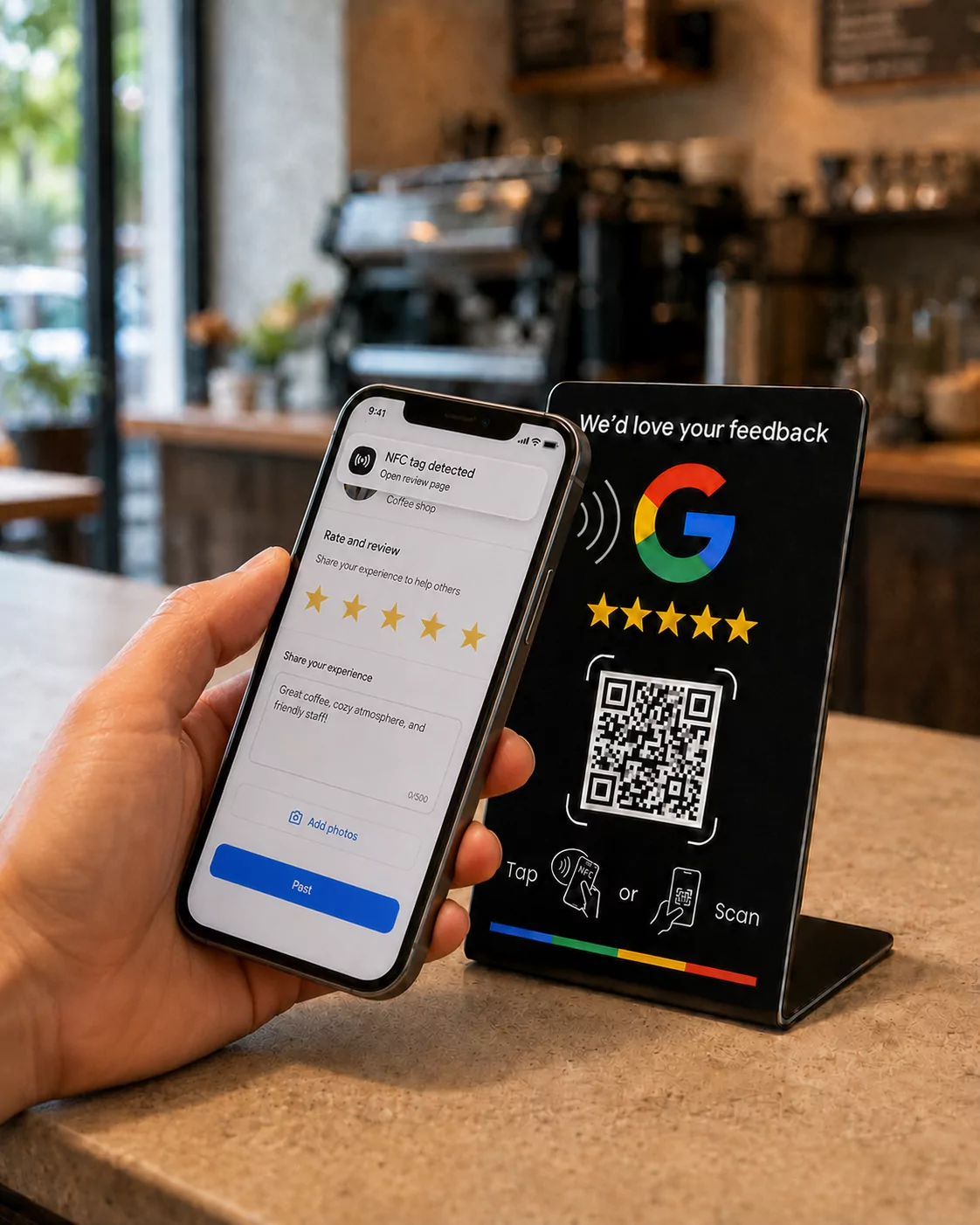
There is no clever part. A chip inside the stand holds a web address. A phone held against it reads that address and opens it. Everything else on this page is detail.
Setup, start to finish
- 1Send us your review linkPaste it at checkout, or reply to the order email if you need to find it first.It is the short link Google gives you under “Ask for reviews” in your Business Profile. If you cannot find it, send us your business name and city and we will look it up.
- 2We program and shipEvery chip is encoded and tested before it leaves, so nothing arrives blank.Orders go out in 1–2 business days. Each stand is tapped on both an iPhone and an Android handset as part of packing.
- 3Put it where people stopCounter first, pay terminal second. It works the moment you take it out of the box.No pairing, no app, no account for your staff to remember. If you later want the link to point somewhere else, change it from your dashboard.
NFC and QR
Two ways in, one link.
Every stand carries both. The NFC chip is the fast path, no camera, no aiming, no app. The QR code on the face is the fallback for phones that will not read a tag, and for the customer standing a metre away.
Both point at the same Vouchify address, which forwards to your review page. That is why changing the link later is free: the chip and the printed code never have to change.
- Power
- None. The chip runs on the field the phone puts out.
- Wifi
- Not needed by the stand. The customer’s phone loads the page.
- App
- None, on either side of the counter.
- Range
- About a centimetre. It will not fire from a pocket.
- Read time
- Under a second, and it can be read repeatedly.
- Customer data
- A tap count per stand. Nothing that identifies anyone.
Compatibility
Which phones read it.
In a normal week almost every customer taps. The QR code is there so the rest are not a dead end.
| Phone | Behaviour | What the customer does |
|---|---|---|
| iPhone XS and newer | Taps automatically | Hold the top edge of the phone near the stand. The link appears as a banner; tap it. |
| iPhone 7 – iPhone X | Taps once awake | Wake and unlock the phone first, then hold the top edge against the stand. |
| iPhone 6s and older | Uses the QR code | No NFC reading for tags. Point the camera at the QR code on the face instead. |
| Android, 2015 onward | Taps automatically | Hold the middle of the back of the phone against the stand. NFC is on by default. |
| Android without NFC | Uses the QR code | Some budget models ship without an NFC antenna. The camera reads the QR code. |
On a phone without NFC, the customer points the camera at the QR code on the face of the stand.
Where we stand on review policy
Asking every customer is fine. Offering something in return for a review, or screening so only happy customers get asked, is not, and we do not build either. The stand opens your public review page for everyone who taps it. The longer answer is in the FAQ.